
Introducing ink-scroll-view
We're excited to announce the release of ink-scroll-view, a new open-source library that brings smooth, glitch-free scrolling to terminal applications built with Ink.
Why We Built This
If you've ever tried to build a CLI tool with Ink, you've likely hit a wall: there's no built-in way to scroll content. Ink gives you powerful React primitives like <Box> and <Text>, but when your content exceeds the terminal height, you're on your own.
We needed a reliable scrolling solution for our own CLI tools, so we built one — and now we're sharing it with the community.
ink-scroll-view provides:
- 🚀 High-performance scrolling — Uses a "negative margin" technique instead of string slicing, minimizing re-renders
- 🎯 Smart alignment — Scroll to any item with
auto,top,center, orbottomalignment - 📐 Dynamic content support — Handles variable-height items and runtime content changes seamlessly
- ⚡ Zero flicker — Smooth scrolling without visual glitches
The Engineering Challenges
Building a scroll view in a CLI environment presents unique constraints compared to the web:
- No Native "Scroll" Property: Terminal buffers are linear streams. You cannot simply set
scrollTop = 100. To "scroll", you must fundamentally alter what text is sent to the output buffer. - Layout Dependency: To scroll correctly, you need to know the precise height of the content before you decide which slice of it to show. However, in React, layout measurements usually happen after the render commit phase.
- Clipping: You need to mask content that is "out of view" without breaking the layout calculations of the content that is in view. Simply not rendering the children means their dimensions cannot be measured.
The Solution: The "Negative Margin" Viewport
Our solution leverages Ink's exposure of Yoga layout metrics combined with a classic "sliding window" technique.
1. Visualizing the Architecture
Instead of manually slicing strings, we render the entire content list but shift its position vertically within a clipped container.
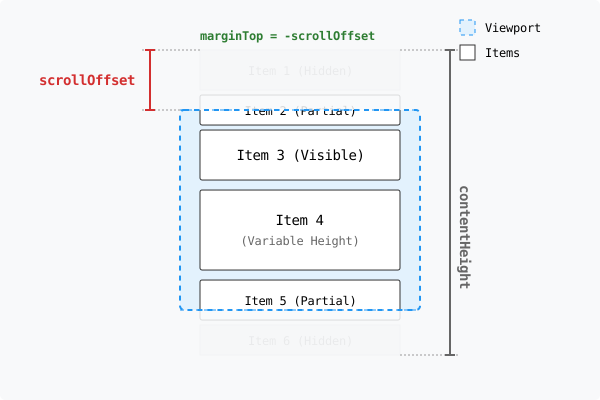
The implementation relies on three nested layers:
- Viewport (Outer Box): Fixed
height,overflowY: "hidden". This clips content. - Container (Inner Box):
marginTop: -scrollTop. This shifts content up. - Items: The actual content.
The Layout Engine (Yoga) calculates the positions of all items. Ink then renders the Container shifted upwards. The Viewport discards any lines that physically fall outside its 0 to height range.
2. Reactivity: Handling Dynamic Content
In a terminal, window resizing and dynamic data loading are common. If the data changes (e.g., a log line is added) or the component changes size (e.g., an accordion expands), the scroll position must remain valid.
The Challenge: React renders first, then Ink/Yoga calculates layout. We don't know the height of an item until after it has been rendered to the virtual DOM.
The Solution:
-
Initial Measurement: Every direct child is wrapped in a
MeasurableItemcomponent that hooks into Ink'smeasureElementto report its height.useLayoutEffect(() => { const { height } = measureElement(ref.current); onMeasure(index, height); }, [width, children]); // Re-run if width or content changes -
Responding to Dynamic Changes: Content and layout can change at runtime. Two APIs handle re-measurement:
remeasure(): Call this when the ScrollView's container size changes (e.g., terminal resize). Items re-layout automatically, but ScrollView needs this trigger to recalculate.remeasureItem(index): Call this when a specific item's content changes. This notifies ScrollView to re-measure that item.
-
Bounds Clamping: Whenever item heights update, we recalculate
maxScroll(totalContentHeight - viewportHeight). If the current scroll position becomes invalid (e.g., items were deleted), we automatically clamp it to a valid range.
3. Smart Scrolling: Alignment Strategies
A critical feature of ScrollList is its ability to intelligently scroll to an item. We support four alignment modes: auto, top, bottom, and center.
Mode: auto (Default)
The "least intrusive" scroll.
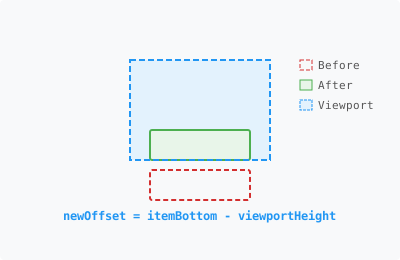
If the item is below the viewport, we scroll just enough to show it at the bottom:
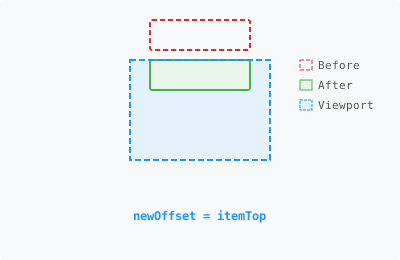
If the item is above the viewport, we scroll just enough to show it at the top:
If it's already visible, we do nothing:
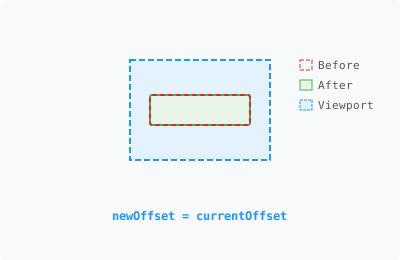
Forced Alignments
Sometimes you want precise control, like centering a search result or jumping to the top of a list.
top: Always align item to the top of the viewport.
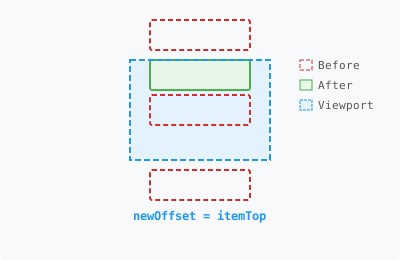
bottom: Always align item to the bottom of the viewport.
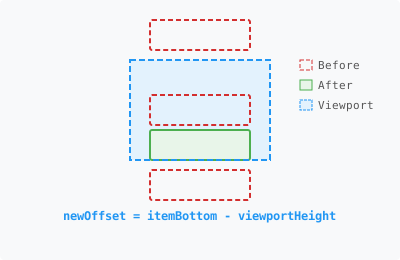
center: Always align item to the center of the viewport.
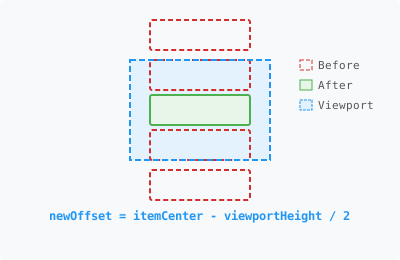
The Algorithm:
- Get Metrics: Retrieve the
top,height, andbottomof the target item relative to the full content list. - Apply Logic: Calculate the new
scrollOffsetbased on the chosen alignment strategy as visualized above. - Clamp: Ensure the new offset is within valid bounds (
0tomaxScroll).
Summary
ink-scroll-view bridges the gap between web-like development DX and the constraints of terminal rendering.
- It uses negative margins to emulate scrolling.
- It performs O(1) lookups for item positioning to handle navigation efficiently.
- It uses reactive measurement hooks to support dynamic content and variable-height items seamlessly.
By solving these low-level engineering problems, developers can focus on building rich, interactive CLI tools.